License Management System
The SmartFoxServer License Management System has been developed to give our customers full control over the licenses they purchased, maximum freedom in choosing their hosting partners and large flexibility when it comes to reassigning licenses to new SFS instances.
This document describes the general architecture of the system and provide detailed operating instructions. Troubleshooting and FAQ sections at the bottom offer guidance in case of issues.
Architecture
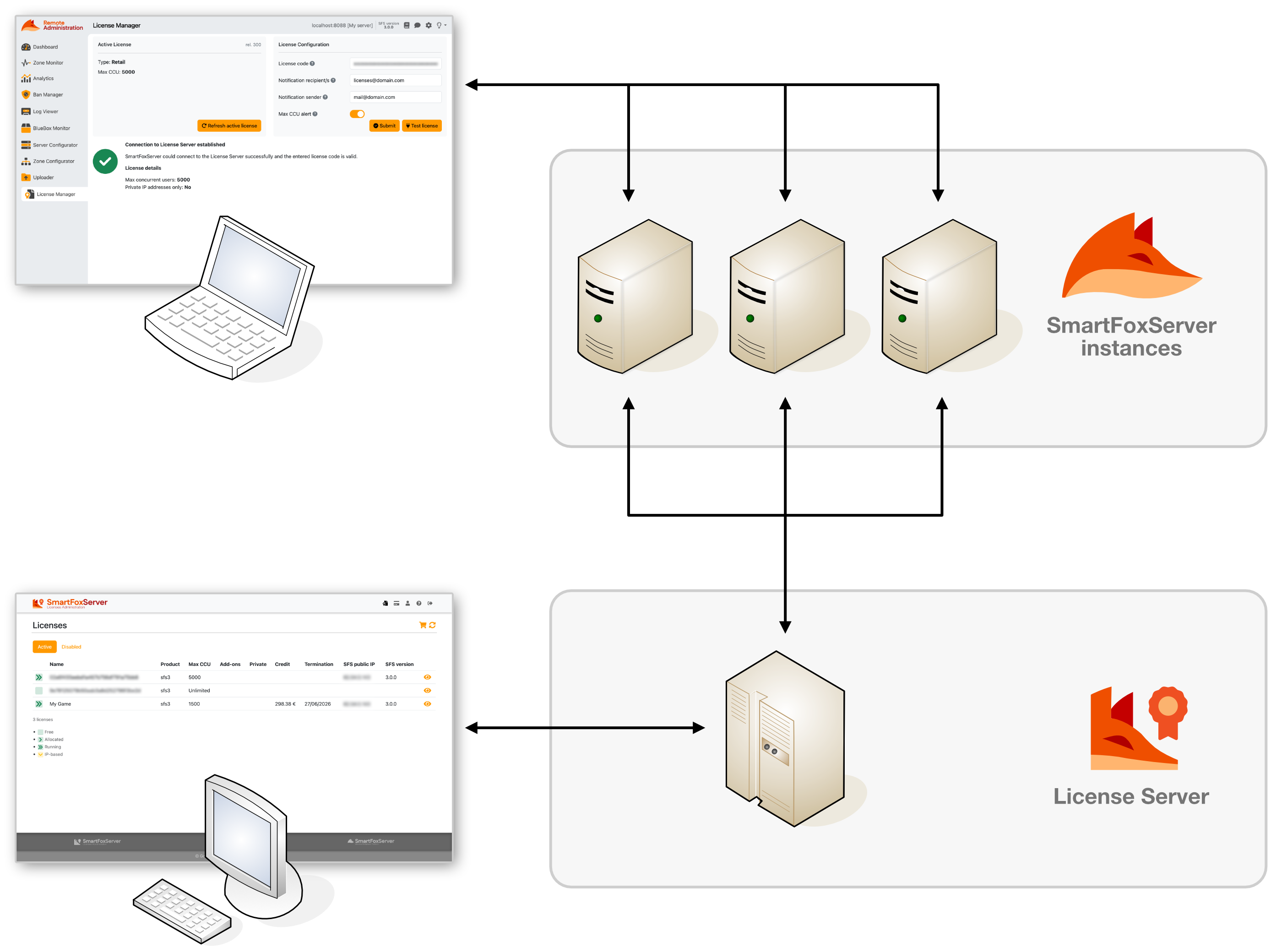
The SmartFoxServer License Management System is based on three components: the License Server, one or more SmartFoxServer instances and the AdminTool's License Manager module. Let's go into details describing each component, starting from the main one.
License Server
The License Server is a centralized server hosted by the SmartFoxServer Team on an the highly available and scalable infrastructure provided by Amazon Web Services. The License Server enables our customers to manage their licenses very easily and efficiently through a centralized console showing the status of all the licenses through a simple web interface (see Licenses Administration dashboard below for detailed information).
As the License Server is also responsible for validating the licenses assigned to SmartFoxServer instances, the only requirement is that such instances must be able to connect to the License Server using a regular HTTPS connection (TCP 443), which guarantees maximum security of communication and ease of use. Find more about this subject in the Setting up a license section below.
SmartFoxServer instance
Within the License Management System, each SmartFoxServer instance is responsible for contacting the License Server to validate the license assigned to it by means of the AdminTool's License Manager module.
The License Server is contacted both during the startup of the server (license initialization) and at runtime (license validation). In case the License Server becomes unreachable for whatever reason (scheduled maintenance, unexpected hardware failure, etc) all SmartFoxServer instances will keep working normally for 96 hours before reverting to the Community Edition version (and as such limiting the maximum number of concurrent users to 100).
If properly configured, SmartFoxServer takes care of sending alerts by email to inform the system administrator that the License Server can't be reached. The grace period can be used to analyze the problem and take the appropriate actions (see the Troubleshooting section below).
License Manager
The License Manager module of the SmartFoxServer Administration Tool is used to assign a license to a SFS instance and test the connection between the instance and the License Server. Please check the License Manager documentation for usage instructions.
Licenses Administration dashboard
The Licenses Administration dashboard is the place where you can control the status of all your SmartFoxServer licenses. You can reach it at this URL: https://lms.smartfoxserver.com.
In order to access the dashboard you need the username and password you received by email the first time you purchased a SmartFoxServer license. The username is your email address, while the password is randomly generated by the system. This can be changed to your password of choice.
We recommend, if possible, that you always buy your licenses under the same company name, to avoid having your licenses scattered over multiple accounts.
Update account details
If you need to change your account details (in case you changed the administrator's email address or the company name for example), please send an email to the SmartFoxServer Support Team. Always provide the current company name and email address associated with your account.
Enter the access credentials in the dashboard main page; after a successful login, the main interface to manage your licenses is displayed. In the header, the main menu gives access to the following views.
Licenses
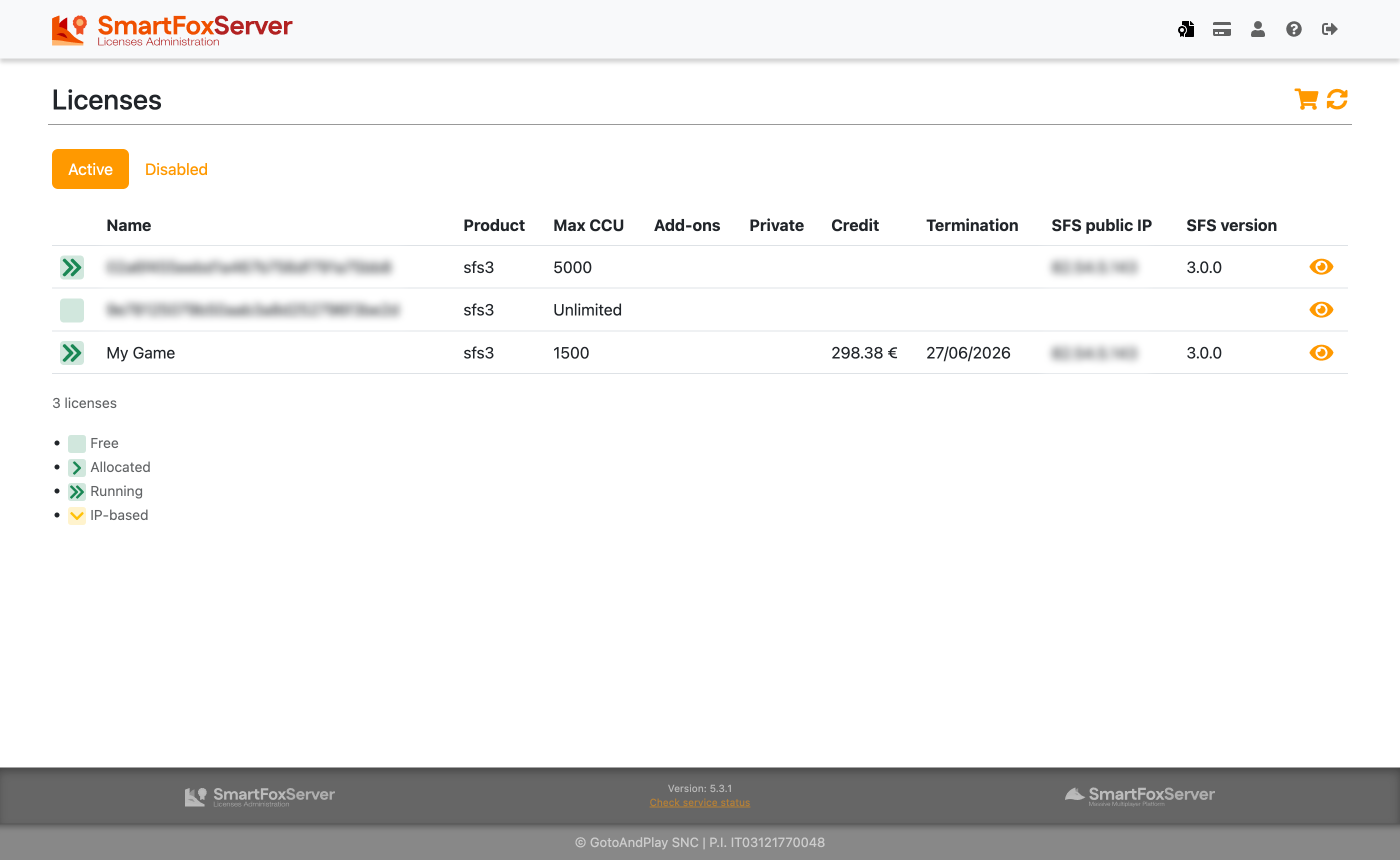
This overview page shows the list of licenses you own, divided in two tabs depending on their status (see below). The list is not refreshed automatically, so in case the status of one of the licenses changes, click the Refresh () button. Use the Buy more () button to visit the SmartFoxServer website's Buy page to add more licenses to your account. As licenses can be perpetual or elastic (based on a rechargeable credit), the interface can vary accordingly. We strongly recommend that you check the linked page to understand the difference between the two.
Each license in the list is described by the following information:
- Status icon — The current license status:
 License is ready to be assigned to a SFS instance
 License is allocated: it was assigned to the last SFS instance which requested it
 The SFS instance to which the license is assigned is up and running
 License is file-based and bound to a specific IP address
 License is elastic and its credit is now depleted
 License was time-limited and it is now expired
 License has been disabled by the SmartFoxServer Team
- Name — The license identification code. It must be entered in the AdminTool's License Manager module to assign the license to a SFS instance (check this article for detailed instruction). You should handle this identifier as confidential information. If a custom name has been assigned to the license (see below), this is displayed in place of the license code.
- Max CCU — The maximum number of concurrent users allowed to connect to the SFS instance to which the license is assigned. Can be a number or the Unlimited string.
- Add-ons — A set of icons representing the optional add-ons enabled on the SFS instance to which the license is assigned.
- Private — If a tick () is displayed, the private IP address restriction is applied to the license; see the license details description below for more information.
- Credit — For elastic licenses only, the currently available credit.
- Termination — The expiration date, in case of a time-limited license; or the estimated credit depletion date, in case of an elastic license.
- SFS public IP — When a license is allocated, the public IP address of the server on which the SFS instance is installed is displayed here.
- SFS version — When a license is allocated, the version of the SFS instance is displayed here.
Click on the View () button to show full information on the selected license, and access the license administration controls.
License details
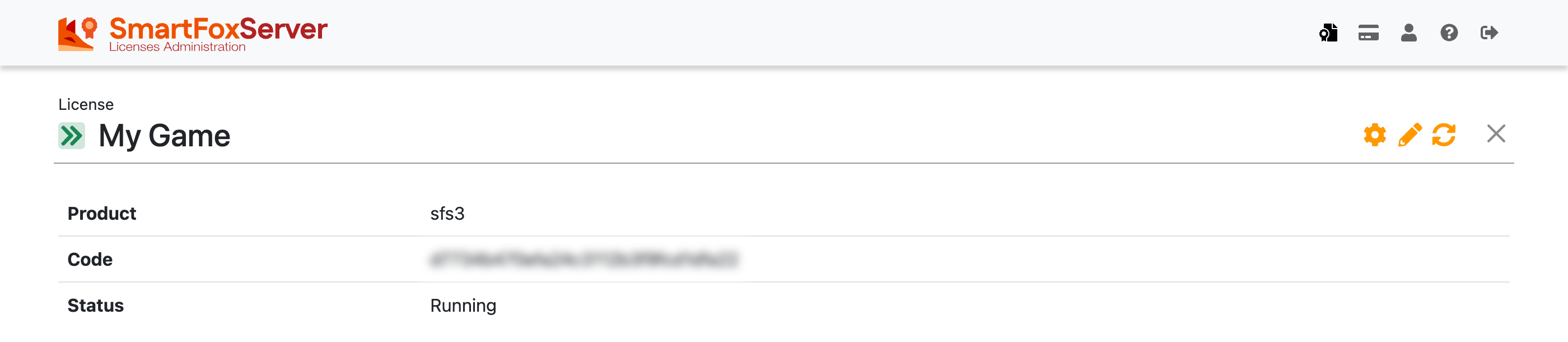
On the license details page, the code of the selected license is highlighted, together with the status icon (see above). In case a custom name is assigned to the license, this is displayed in place of the license code. The custom name can be useful to know which game / application / server the license is assigned to, and easily locate it among other licenses on the overview page. In order to set it, click on the Rename () button and enter the name in the modal window that pops up.
The Configure () button is available for elastic licenses only; it allows to set the maximum number of CCU for the license and the active add-ons. Check Configuring an elastic license below for detailed information.
If the license is perpetual and has a limited maximum number of CCU, the Configure () button is substituted by the Upgrade () button. Click it to visit our online shop to extend the number of CCU if needed.
Under the license name/code, the actual license code and status are displayed, followed by the full license details and administration controls, divided into four groups; please note that the Subscription group is available if the license is elastic only.
Subscription (elastic licenses only)

- Daily charge — The amount charged on a daily basis for the license usage (rounded). This amount is based on the current license setup (maximum CCU and add-ons) and it is calculated as detailed in the Billing page description below.
- Additional monthly charge — The additional amount charged on a monthly basis, if any. This is displayed if an add-on with a fixed monthly charge is active on the license. Again, see the Billing page description below.
- Available credit — The total credit associated with the license (rounded). The initial amount is set when the elastic license is created, then it decreases over time as the daily and monthly license costs are charged. The credit can be recharged following the procedure described under Recharging an elastic license below. Note that the license costs are charged whether the license is allocated (assigned to a SFS license) or not.
- Termination on — The date on which charging the license costs won't be possible anymore, due to the credit being depleted. If this happens, the license status will change accordingly and the license will be reverted to the Community Edition. The termination date can be extended by recharging the license credit.
Configuration

- Max concurrent users — The maximum number of concurrent users (CCU) allowed to connect to the SFS instance. If the license is elastic, this value can be changed as described under Configuring an elastic license below.
- Is private — If set to yes, the private IP address restriction is applied to the license: this means that the SFS instance will accept connections from the following IP address ranges only:
- 10.x.x.x
- 192.168.x.x
- from 172.16.x.x to 172.31.x.x
- Add-ons — The list of optional add-ons (icon and name) enabled on the SFS instance. If the license is elastic, add-ons can be activated or deactivated as described under Configuring an elastic license below.
Allocation

- Allocation mode — The license allocation mode can be static (default) or dynamic. If static, after the license is assigned to a SFS instance, it won't be possible to later assign it to another without manually resetting the allocation (see next). If dynamic, moving the license to a new instance doesn't need manual operations: the license is always assigned to the last SFS instance requesting it. Click on the Switch button to change the allocation mode to dynamic and vice versa.
- Is allocated — If set to yes, the license is assigned to a SFS instance. Click on the Deallocate button to reset the license allocation and make it available for a new SFS instance (see Moving a SFS instance to a new server and Transferring a license to a new SFS instance below).
- SFS public IP — The public IP address of the SFS instance to which the license is assigned (if allocated).
- SFS version — The version number of the SmartFoxServer instance to which the license is assigned (if allocated).
In case the deprecated file-based license system is used (must be requested to the SmartFoxServer Team for specific reasons), all the details above are substituted by the fixed IP address to which the license is bound.
Other

- Created on — The license creation date.
- Order # — The order number from the SmartFoxServer online shop under which the license was purchased. It might be empty or contain other information in case the license was added without an order being placed.
Billing
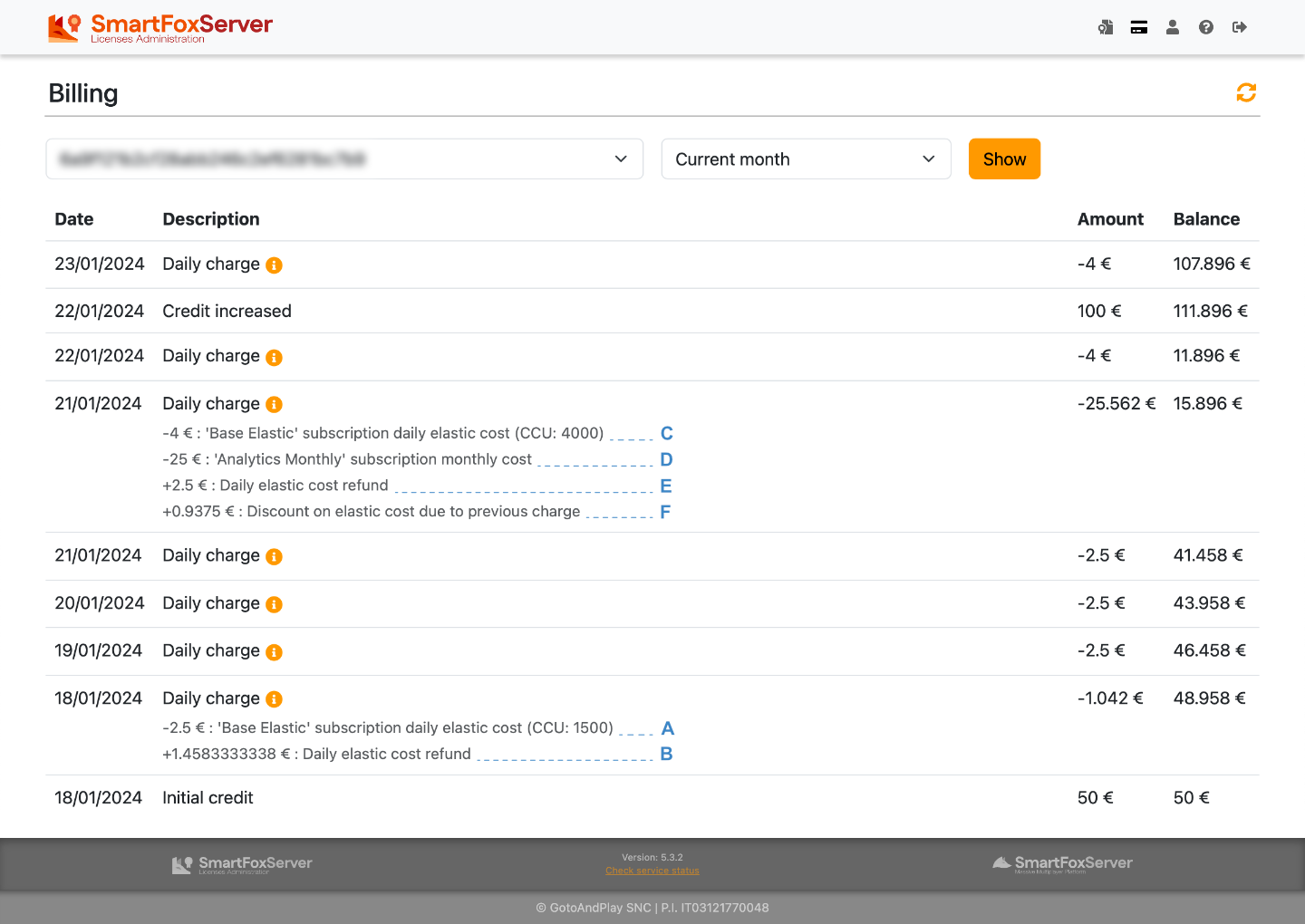
Figures shown in the image above and billing example below may not reflect current pricing. Also, mentioned add-ons may not be available for some product lines, or may be included in the base license fee.
The billing page shows the credit consumption (or recharges) of your elastic licenses on a daily basis. Select one of the licenses listed in the first dropdown, select the period (last twelve months available) and hit the Show button to get the list of transactions.
The base cost of an elastic license depends on the maximum number of concurrent users (CCU) allowed to connect to the SFS instance to which che license is assigned. Such cost is charged on a daily basis using this formula:
daily charge = pcm * ccumax / 30
where:
- pcm is the price per ccu per month declared on the SmartFoxSever website's Buy page;
- ccumax is the maximum number of CCU for which the license is configured;
- 30 is a conventional number of days in a month.
Click on the Info () button in the billing entry description to check the transaction details. If you activated one or more optional license add-ons, or changes have been made to the initial license configuration, detailed information is provided.
Rounding
As licenses can be created or modified at any time of the day, refunds are often due as described in the example below. In this case actual license usage is calculated rounding the time to the previous full hour.
Billing example
The image above shows a typical billing report; let's go through it starting from the bottom.
- On January 18th at 14:50 the selected license was purchased. The bottom row of the table shows the initial credit assigned to the license. The next one instead is the actual initial charge. The details show the daily cost for the number of CCU set at creation time and the subscription name (A). The daily price was calculated using the above formula, but due to the time of the day when the license was created, the customer was charged for the remaining hours of the day only (rounded – in this example 10 hours, from 14:00 to 24:00) and the corresponding fraction of the daily price was refunded (B).
- From January 19th to 21st the full daily price was charged.
- On January 21st at 15:01 the license configuration was changed by the customer: the maximum CCU was increased from 1500 to 4000 and the Analytics add-on was activated. The full new daily cost was charged (C) together with the monthly price of the add-on (D).
As the customer already paid for the whole day (previous table row), a refund was also due (E+F). The refund is based on the time at which the configuration change occurred, rounded to the full hour; this formula is used:
refund = dcp + ((dcn - dcp) * h/24)
where:- dcn is the new daily charge
- dcp is the previous daily charge
- h is the rounded hour of the day at which the configuration change occurred
- Starting from January 22nd, the new full daily price is charged.
- Maybe because the license was running out of credit, on January 22nd the customer also recharged it with an amount of 100€.
Account
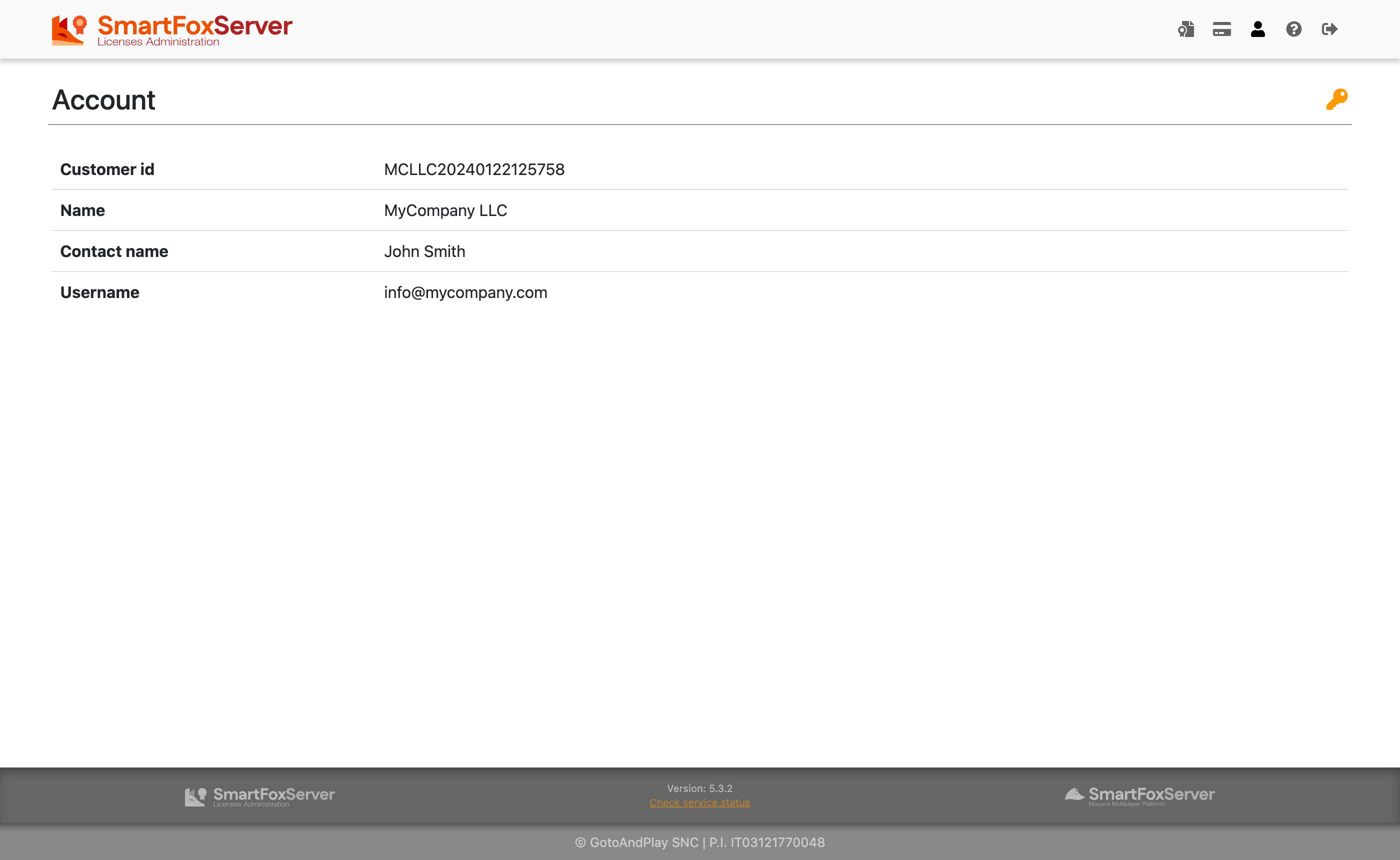
This page shows your License Server account details: customer identifier, name, contact and email address of the account owner. Other than for login purpose, the email address is used by the License Server to send specific informations to the licenses administrator whenever a change occurs (new license added, password changed, license details modified, elastic license credit depletion approaching, etc). Make sure this address is constantly monitored!
The Reset password () button can be clicked to start the password change procedure.
Help
Click the Help menu item to visit the current documentation page.
Logout
Click the Logout menu item to return to the login page.
Setting up a license
Prerequisites
Before assigning a license to a SFS instance as described in this section, you have to check if the server on which SmartFoxServer is installed can communicate with the License Server by means of a standard HTTPS connection. If the server hosting SFS is behind a firewall (software or hardware), simply make sure that the traffic over TCP port 443 is not blocked.
Setup
In order to setup a license on a SFS instance, execute the following steps. Make sure you read the License Manager documentation for additional information.
- Open the AdminTool and connect to the SFS instance.
- Open the License Manager module.
- Access the Licenses Administration dashboard, locate the license and click the View () button.
- Copy & paste the license code in the License code field of the License Manager module.
- Still in the License Manager module, click the Submit button to save the license code.
- Click the Test license button: if a warning is displayed, then the SFS instance is not able to validate the license on the License Server; otherwise the license details are reported. In case of license validation issues, check the Troubleshooting section below.
- Stop and restart SmartFoxServer.
- Go back to the Licenses Administration dashboard and refresh the list by hitting the Refresh () button: the license should now be reported as running () and the SmartFoxServer's public IP address and version should be displayed.
As an additional step, you might want to check the startup log of SmartFoxServer: the main license details are displayed at the beginning of the log, like in this example:
17:29:48.856 [main] INFO  SmartFoxServer -- Boot sequence starts...
17:29:49.514 [main] INFO  SFSEventManager -- SFSEventManager initialized
17:29:49.537 [main] INFO  SmartFoxServer -- Validating license... (this process may take a few seconds)
17:29:49.626 [main] INFO  SmartFoxServer -- Connection with the License Server established
17:29:49.641 [main] INFO  SmartFoxServer -- License loaded:

==========================================
LICENSE DETAILS
------------------------------------------
Type            : Retail
Max users       : 1500
------------------------------------------
Rel. 300
==========================================
Moving a SFS instance to a new server
When moving a SFS instance to a new server, for example if you are changing your hosting provider for the production environment, you have to release the license allocation in the Licenses Administration dashboard, or SFS won't be able to retrieve its license from the new location.
In order to do this, execute the following steps.
- Stop the SFS instance.
- Access the Licenses Administration dashboard and locate the license: its status should be allocated () or running ().
- Select the license by clicking on the View () button.
- Scroll to the Allocation details and click on the Deallocate button: the license status should be reverted to free ().
- Move the SFS instance to the new server.
- Assign the license back to the SFS instance by following the steps described in the Setting up a license section.
A common scenario which also requires the steps above to be executed is a server instance termination in a cloud environment. When the server is terminated and restarted, it might be unable to retrieve its license: you can test this using the Test license button in the AdminTool's License Manager module. If the license is reported as being already allocated, you should reset its allocation as explained.
Dynamic allocation
An alternative to manual license deallocation is to change its allocation mode from static to dynamic. In this case the license is always assigned to the last SFS instance requesting it on startup. While this can be useful to avoid the manual procedure described above, it should be used carefully: in fact a new SFS instance can "steal" the license to a previously running instance, causing it to return to the Community Edition mode.
Transferring a license to a new SFS instance
There are cases in which you need to transfer a license to a new SFS instance, for example when you complete coding and testing in your development environment and you want to install your application/game in production, or in case you installed a new SFS version in the same environment of the previous one. In order to make your license work again, you have to release the license allocation in the Licenses Administration dashboard.
Follow the next steps (supposing you need to move the license from instance SFS-DEV to instance SFS-PROD).
- Open the AdminTool and connect to the SFS-DEV instance.
- Open the License Manager module.
- Remove the license code from the License code field and click the Submit button.
- Stop and restart SFS-DEV: it should now load the default Community Edition license.
- Access the Licenses Administration dashboard and locate the license that was assigned to SFS-DEV: its status should still be allocated () or running ().
- Select the license by clicking on the View () button.
- Scroll to the Allocation details and click on the Deallocate button: the license status should be reverted to free ().
- Assign the license to the SFS-PROD instance by following the steps described in the Setting up a license section.
The same warning on dynamic allocation displayed in the previous section applies here.
Configuring an elastic license
If you own an elastic license, at any time you can change its configuration to fine tune the daily spending based on the application/game traffic. You can do it by following these steps.
Figures shown in the images below may not reflect current pricing. Also, mentioned add-ons may not be available for some product lines or may be included in the base license fee.
- Access the Licenses Administration dashboard and locate the license to be configured.
- Select it by clicking on the View () button.
- Click on the Configure () button at the top of the page; the modal shown in the picture pops up:
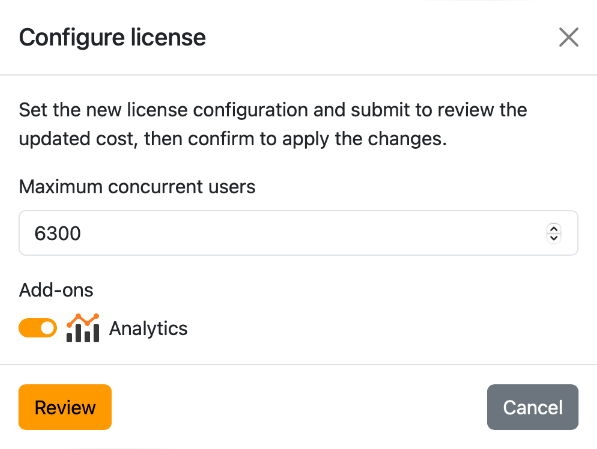
- Set the new maximum concurrent users allowed to connect to the SFS instance and enable/disable one or more optional add-on.
- Click on the Review button to recap the updated daily / monthly cost of the license for the selected configuration:
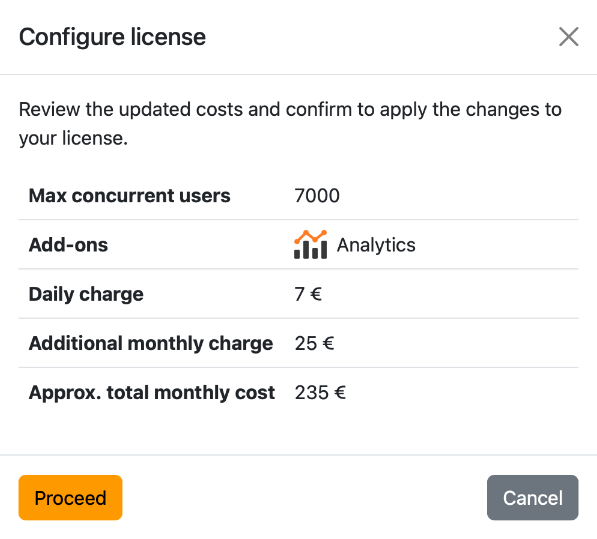
- Click on the Proceed button to apply the changes. If the license cost is increased or new monthly add-ons are activated, the license credit is decreased accordingly.
- Open the AdminTool's License Manager module and connect to the SFS instance to which the license is assigned.
- Click on the Refresh active license button to force SmartFoxServer to request the new settings to the License Server and apply them. If this step is not executed, the SFS instance will retrieve the new configuration within the next few hours anyway.
Check the Licenses Administration dashboard's Billing page description for a complete example showing the charged costs when the license configuration is changed.
Recharging an elastic license
The elastic license is based on a rechargeable credit which is consumed by a daily charge whose amount depends on the license configuration: maximum concurrent users and active add-ons.
The license is considered exhausted (status icon: ) when the residual credit is not enough to cover the amount being charged. In this case, the SFS instance to which the license is assigned is reverted to the Community Edition mode. In order to avoid this as much as possible, three alerts are sent by email when the credit depletion approaches: one week, three days and one day before.
The credit can be recharged at any time following this procedure.
- Access the Licenses Administration dashboard and locate the license to be recharged.
- Select it by clicking on the View () button.
- Scroll to the Allocation details and click on the Add button near the currently available credit; the modal shown in the picture pops up:
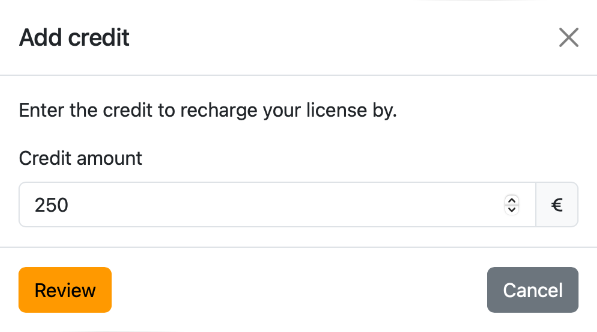
- Set the credit amount you want to purchase and click on the Review button. The popup now shows the Buy credit button:
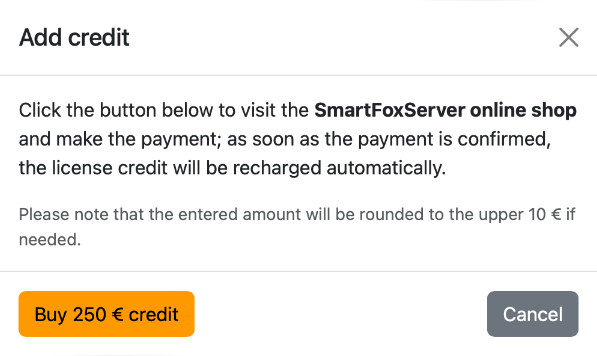
- Click on the Buy credit button to visit the SmartFoxServer online shop, where the "SmartFoxServer elastic license 10€ credit" product is automatically added to your cart; the product's quantity is used to match the total credit you want to purchase, rounded to the upper 10€ as mentioned in the previous image.
- Proceed with the shopping cart checkout and make the payment. If you pay with a credit card or PayPal account, the new credit will be added to your license automatically, as soon as the payment is received. If you pay by wire transfer instead, the license will be manually recharged by our team as soon as we receive the payment.
If any issue should occur during the process above, please contact our support team.
Recharging an exhausted license
Please note that in case the license is recharged after its status became exhausted, the SmartFoxServer instance must be manually restarted to reload the updated license.
Troubleshooting
This section is meant to help you analyze any license-related issue you might encounter while operating SmartFoxServer. In case you can't solve your problem, or it isn't listed here, please contact the SmartFoxServer Support Team by email.
Where applicable the following legend is used to describe in which scenarios the issues are reported:
- License setup — The issue is reported by the AdminTool's License Manager module during the initial license setup, when the Test license button is clicked.
-
License initialization — The issue is logged by the SmartFoxServer instance when started; it is also sent by email to the licenses administrator, provided that a notification email address has been entered in the AdminTool's License Manager module.
If the issue occurs during the first license initialization after the setup, SFS will run in Community Edition mode (limited number of concurrent users). In case the license was already initialized before, the previous license is loaded and the initialization is attempted again for the next 96 hours (except in case of expired or disabled license). If the issue is not fixed within the grace period, SmartFoxServer will be then reverted to the Community Edition.
-
License validation — The issue is logged by the SmartFoxServer instance at runtime; it is also sent by email to the licenses administrator, provided that a notification email address has been entered in the AdminTool's License Manager module.
The license validation is attempted periodically for 96 hours after the first notification of the issue (except in case of expired or disabled license). If it is not fixed within the grace period, SmartFoxServer will be then reverted to the Community Edition.
Licensing issues
- The SFS instance is unable to contact the License Server ( | | )
Make sure the License Server is up and running by visiting this URL with a browser, then:- if the page can be loaded and the login form of the Licenses Administration dashboard is displayed, see (2);
- if the page can't be loaded and the same happens with other websites, a large network failure might be in progress and prevent you to reach it: see (3);
- if the page can't be loaded for no apparent reason, the License Server might be down: see (4).
- The SFS instance is unable to contact the License Server but I can reach the Licenses Administration dashboard using the browser ( | | )
Either a software firewall located on the server hosting the SFS instance or an hardware firewall in front of it is blocking the HTTPS communication (TCP port 443). Configure the firewall properly to allow HTTPS connections.
Also make sure the internal clock of your server is set to the right time; a wrong timestamp can cause a failure in checking the SSL certificate when contacting the License Server. - The SFS instance is unable to contact the License Server because a temporary network failure is preventing the connection ( | | )
If you are unable to start SFS in production environment or the grace period is going to end within 24 hours, please contact the SmartFoxServer Support Team: you will receive a temporary IP-based license file to be installed on your SFS instance which will skip the license initialization/validation for an agreed amount of time. - The SFS instance is unable to contact the License Server because the License Server is down ( | | )
The License Server is hosted at the highly available Amazon Web Services infrastructure, nevertheless service down periods can happen due to failure or maintenance. If you are unable to start SFS in production environment or the grace period is going to end within 24 hours, please contact the SmartFoxServer Support Team: you will receive a temporary IP-based license file to be installed on your SFS instance which will skip the license initialization/validation for an agreed amount of time. - The entered license code is reported as invalid ( | )
Make sure you copied the code from the Licenses Administration dashboard exactly. We suggest you to use the copy & paste functionality of your operating system. During license setup, the code is shown as invalid in case the license was disabled by the SmartFoxServer Team too; see (8). - The license is reported as already allocated ( | | )
This warning is displayed in case the license has already been assigned to a SFS instance before. If you are moving the license to a new instance or you are moving the same instance to a new server, you need to reset the license allocation as described in the Moving a SFS instance to a new server or Transferring a license to a new SFS instance sections above. - The license is expired ( | | )
The expiration date of your time-limited license has passed. Remove the license code using the AdminTool's License Manager module to avoid the warning to be reported at startup or runtime continuously. - The license is disabled ( | )
The license was disabled by the SmartFoxServer Team. If this happened for no apparent reason, please contact the SmartFoxServer Support. - The license credit is depleted ( | | )
The credit assigned to an elastic license was depleted. Follow the procedure described in the Recharging an elastic license section above.