Unreal Connector
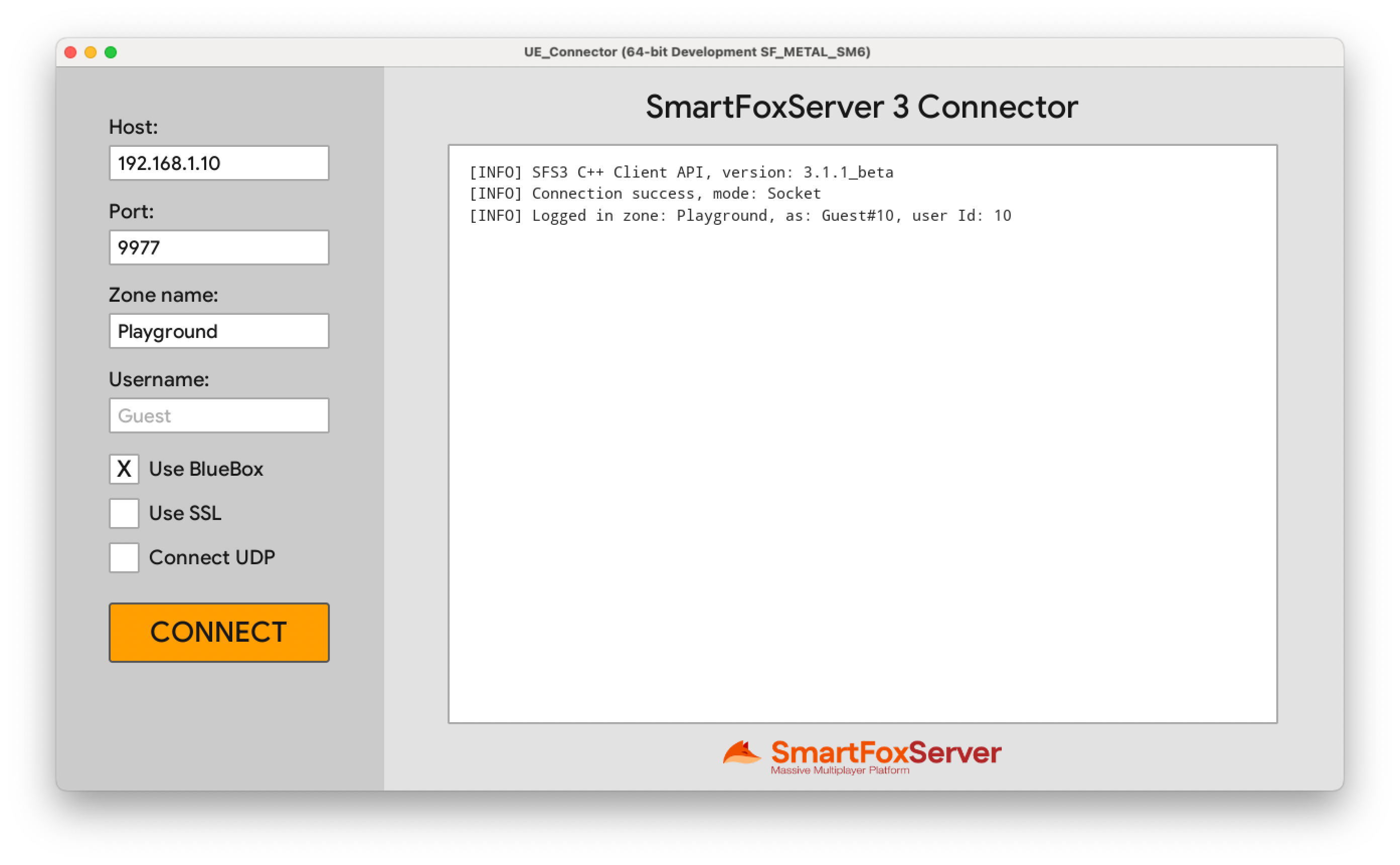
UE_Connector is a small Unreal Engine 5 application that connects to SmartFoxServer 3 with the SFS3Client plugin. You enter the connection settings and click CONNECT. The application then connects, logs in and, if you select it, starts the UDP connection. A panel on the right shows the API log.
The example shows the minimum that a game needs to talk to the server from Unreal:
- how to get the plugin's subsystem and give it a
SmartFoxinstance; - how to run one session: connection, login, optional UDP, disconnection;
- how to show the API log messages in your own UI.
The user interface is all C++ code (Slate). The project has no binary assets and no map of its own: it uses the engine's empty map. So the project is small, and you can read all of it in a few source files.
Note
This guide is about the example only. The Unreal Engine 5 C++ Plugin guide explains the plugin itself and how to add it to your own project.
Source code
Prerequisites
- Unreal Engine 5.7, installed from the Epic Games Launcher.
- Windows: Visual Studio 2022 or 2026 with the Game development with C++ workload, and the .NET Framework 4.8 SDK.
- macOS: Xcode, in a version that your engine version supports. Start Xcode once before the first build.
- SmartFoxServer 3, installed on the same machine.
The plugin guide has the details of the tools for each platform, in its Prerequisites section.
The project folder
UE_Connector/
  UE_Connector.uproject      the project file: open this
  Config/                    project settings (game instance, empty map, window size, input)
  Source/                    the application code (C++)
  Plugins/SFS3Client/        the SmartFoxServer 3 C++ API as an Unreal plugin
  Resources/                 font and logo, loaded when the application starts
The plugin is already in Plugins/, so there is nothing to install. The first build compiles the plugin together with the application.
Open and build the project
- Double-click
UE_Connector.uproject.- If the file does not open with Unreal on Windows: right-click it, select Switch Unreal Engine version..., and select 5.7.
- On macOS: start Unreal Editor 5.7 from the Epic Games Launcher. In the Project Browser, click Browse and select the file.
- The editor says that the modules
UE_ConnectorandSFS3Clientare missing, and asks if you want to rebuild them. Click Yes. - Wait. The first build compiles the whole API, so it takes a few minutes. The editor can show little or no progress during the build.
- The editor opens on an empty, dark scene.
If the build fails
The editor only tells you that the build failed. To see the errors, close the editor and build from the command line. Change the engine path and the project path to the ones on your machine.
Windows (Command Prompt):
"C:\Program Files\Epic Games\UE_5.7\Engine\Build\BatchFiles\Build.bat" ^
  UE_ConnectorEditor Win64 Development -Project="C:\Path\To\UE_Connector\UE_Connector.uproject"
macOS (Terminal):
"/Users/Shared/Epic Games/UE_5.7/Engine/Build/BatchFiles/Mac/Build.sh" \
  UE_ConnectorEditor Mac Development -Project="/path/to/UE_Connector/UE_Connector.uproject"
When there are many errors, look at the first one. It is usually the real cause. When the command ends with Result: Succeeded, open the project again: the editor no longer asks to rebuild.
You can also build from Visual Studio or Xcode. The plugin guide shows how, in its Build the project section.
Run the example with a local server
- Start SmartFoxServer 3 on your machine.
- In the editor, press Play (the green triangle in the toolbar). The Connector UI fills the viewport.
- Keep the default settings. They are the ones of a local server: host
127.0.0.1, port9977, ZonePlayground, and an empty user name for a guest login. - Click CONNECT.
- Press Esc, or the Stop button, to end Play.
The settings
| Setting | Meaning |
|---|---|
| Host, Port | The server address and its TCP port. The example uses the same port number for UDP. |
| Zone name | The Zone to log in to. "Playground" is available by default |
| Username | Leave it empty for a guest login: the server then assigns a name. |
| Use BlueBox | If the TCP connection fails, the API tries the HTTP tunnel (port 8088). It is a fallback, not a forced mode. To test it, enter a TCP port that is closed: the log then shows mode: HTTP. |
| Use SSL | Encrypted connection. See the warning below. |
| Connect UDP | After the login, start the UDP connection. |
Use SSL does not work with a default local server
Under Unreal, encryption needs a server with a valid certificate. The self-signed certificate of a local server is refused. The plugin guide explains this in its Known limitations section.
The CONNECT button
- CONNECT starts a session: connection, login, then UDP if selected. The button shows CONNECTING, then DISCONNECT when you are logged in.
- DISCONNECT ends the session. The button shows CLOSING until the connection is closed.
- The settings are locked while a session is active.
- The log panel follows the new lines while it is scrolled to the bottom. You can select its text and copy it. A blank line separates the sessions.
Package the game (optional)
In the editor, select Platforms → Windows (or Mac) → Package Project. The packaged game opens a 1600 x 810 window with the same UI. The plugin, the font and the logo need no extra settings.
Source code structure
The application code is in Source/UE_Connector/:
| File | Job |
|---|---|
ConnectorGameInstance.h/.cpp |
Puts the UI on screen when the game starts, and removes it when the game ends. |
SConnectorWidget.h/.cpp |
The UI, and the session logic: it builds the settings, starts the connection and handles the server events. |
ConnectorLog.h/.cpp |
Receives the API log lines and keeps them for the log panel. |
UE_Connector.cpp |
The game module. It removes the log receiver when the module unloads. |
UE_Connector.Build.cs |
The module's build settings: the engine modules it uses, and the resource files to ship. |
A project with no map and no assets
The example needs no level of its own. The file Config/DefaultEngine.ini tells the engine to load its own empty map, and to use the example's game instance class:
[/Script/EngineSettings.GameMapsSettings]
GameInstanceClass=/Script/UE_Connector.ConnectorGameInstance
EditorStartupMap=/Engine/Maps/Entry
GameDefaultMap=/Engine/Maps/Entry
The other files in Config/ set the window size of the packaged game, and stop the viewport from capturing the mouse, because the application is a UI only.
The game instance puts the UI on screen
UConnectorGameInstance extends UGameInstance. The engine calls its OnStart() method when the game starts. The method creates the widget, gives it the plugin's subsystem, and adds it to the game viewport:
It then sets the input mode of the player controller to FInputModeUIOnly and shows the mouse cursor, so the UI takes all the input.
The Shutdown() method does the opposite, in this order: it ends the session, removes the widget from the viewport, then detaches the log panel.
The UI is one Slate widget
Slate is the engine's C++ UI framework. SConnectorWidget extends SCompoundWidget and builds the whole UI in its Construct() method, as a tree of standard widgets:
SHorizontalBoxandSVerticalBoxfor the layout, withSBoxfor fixed sizes andSBorderfor backgrounds;SEditableTextfor the four text fields;SButtonfor the CONNECT button, and for the three check boxes (a flat button around a box and a label, so a click on the whole row changes the value);SMultiLineEditableTextin read-only mode for the log, so you can select and copy the text, inside anSScrollBoxwith an externalSScrollBar;STextBlockandSImagefor the labels, the title and the logo.
The widget keeps one state value: Idle, Connecting, Connected or Disconnecting. The button text, the button color and the locked state of the fields are attributes that read this value on each frame. So the code only changes the state, and the UI follows.
The colors and rounded boxes are brushes (FSlateColorBrush, FSlateRoundedBoxBrush) that the widget keeps as members, because Slate holds pointers to them.
The session
The session code is in StartSession(), AddListeners() and EndSession(). It uses the plugin's USFS3Subsystem, which owns the SmartFox instance and calls its event handlers on the game thread, once per frame. So the handlers can change the widget directly.
1. Start. A click on CONNECT reads the fields into a ConfigData, creates a new SmartFox instance, adds the event handlers and connects:
sfs3::ConfigData Cfg;
Cfg.host = TCHAR_TO_UTF8(*HostField->GetText().ToString().TrimStartAndEnd());
Cfg.port = Port;
Cfg.udpPort = Port;
Cfg.zone = TCHAR_TO_UTF8(*ZoneField->GetText().ToString().TrimStartAndEnd());
Cfg.blueBox.isActive = bUseBlueBox;
Cfg.useSSL = bUseSSL;

// One SmartFox instance per session: this destroys the previous one, if any
Sfs3->SetSmartFox(std::make_unique<sfs3::SmartFox>());
sfs3::SmartFox* Sfs = Sfs3->GetSmartFox();

AddListeners(*Sfs);

sfs3::Result Res = Sfs->connect(Cfg);
The macros TCHAR_TO_UTF8 and UTF8_TO_TCHAR convert between the engine's FString and the std::string that the API uses.
2. Events. Each step of the session starts from the event of the previous step:
| Event | What the example does |
|---|---|
CONNECTION |
On success, sends a LoginRequest. On failure, ends the session. |
LOGIN |
Sets the state to Connected. If Connect UDP is selected, calls connectUdp(). |
LOGIN_ERROR |
Writes the error and disconnects. |
CONNECTION_LOST |
Ends the session. This event also follows a click on DISCONNECT. |
CONNECTION_RETRY, CONNECTION_RESUME |
Writes a line to the log. |
UDP_CONNECTION, UDP_CONNECTION_LOST |
Writes the result to the log. |
For example, the handler of the CONNECTION event:
Sfs.addEventListener(event::SFSEvent::CONNECTION, [this, SfsPtr](const event::ApiEvent& E)
{
    auto& Evt = static_cast<const event::Connection&>(E);

    if (!Evt.success)
    {
        log::warn("Connection failed: {}", Evt.errMessage.value_or("unknown reason"));
        EndSession();
        return;
    }

    log::info("Connection success, mode: {}", SfsPtr->getConnectionMode());

    Result Res = SfsPtr->send(requests::LoginRequest { UserName });
    ...
});
3. End. EndSession() sets the state back to Idle, disconnects if the connection is still open, and removes the instance with SetSmartFox(nullptr). One SmartFox instance is one session, so the next click on CONNECT creates a new one.
Note
The handlers capture the widget (this). The SmartFox instance owns the handlers, so the example removes the instance before the widget goes away: the game instance calls EndSession() in its Shutdown() method. Do the same in your game when a handler uses an object that can be destroyed.
The log panel
The API sends each log message to a function that you can replace, with sfs3::log::setSink(). The plugin installs one that writes to the Output Log. The example replaces it with its own, in ConnectorLog, which does two things:
- it writes the line to the Output Log with
UE_LOG, in theLogSFS3category, as the plugin does; - it adds the line to a queue for the panel.
The API calls this function from its network threads too. The widget can only change on the game thread, so the function does not touch the widget. It puts the line in a queue that has a lock (FCriticalSection). On the game thread, the widget takes the lines out of the queue once per frame, with an active timer:
The example's own messages (sfs3::log::info(...) in the event handlers) use the same route, so they show in the panel in the correct order with the API's lines. The panel keeps the last 1000 lines.
The game module calls sfs3::log::resetSink() when it unloads. The function is in the game module, so the API must not call it after that.
The font and the logo
The font and the logo are not imported as Unreal assets. The widget loads them from the Resources/ folder when it starts: the font with FStandaloneCompositeFont, the logo with FSlateDynamicImageBrush. If a file is missing, the widget writes a warning and uses the engine font, or shows no logo.
A packaged game needs these files next to the program. The file UE_Connector.Build.cs lists them as runtime dependencies, so the packaging step copies them:
RuntimeDependencies.Add("$(ProjectDir)/Resources/GoogleSans-Medium.ttf", StagedFileType.NonUFS);
RuntimeDependencies.Add("$(ProjectDir)/Resources/sfs3-logo-small@2x.png", StagedFileType.NonUFS);
The Unreal API that the example uses
| Area | Unreal API | Used for |
|---|---|---|
| Game framework | UGameInstance (OnStart, Shutdown) |
The start and the end of the application. |
UGameViewportClient::AddViewportWidgetContent |
Puts the Slate widget on screen. | |
APlayerController::SetInputMode, FInputModeUIOnly |
Sends all the input to the UI. | |
UGameInstanceSubsystem (GetSubsystem) |
Gets the plugin's USFS3Subsystem. |
|
| Slate | SCompoundWidget, SNew, SAssignNew, SLATE_ARGUMENT |
The custom widget and its construction. |
SHorizontalBox, SVerticalBox, SBox, SBorder, SScrollBox, SScrollBar |
Layout and scrolling. | |
SEditableText, SMultiLineEditableText, SButton, STextBlock, SImage |
Fields, log text, buttons, labels, logo. | |
TAttribute, the _Lambda forms of the widget arguments |
UI values that follow the session state. | |
RegisterActiveTimer |
Work on each frame, on the game thread. | |
FSlateColorBrush, FSlateRoundedBoxBrush, FSlateDynamicImageBrush, FButtonStyle, FTextBlockStyle, FCoreStyle |
Colors, shapes, the logo image and text styles. | |
FStandaloneCompositeFont, FSlateFontInfo |
A font loaded from a file. | |
| Core | UE_LOG, DEFINE_LOG_CATEGORY_STATIC |
Lines in the Output Log. |
FCriticalSection, FScopeLock |
The lock of the log queue. | |
FString, FText, TCHAR_TO_UTF8, UTF8_TO_TCHAR |
Text, and conversion to and from std::string. |
|
FPaths, FDefaultValueHelper |
The path of the resource files, and the check of the port number. | |
IMPLEMENT_PRIMARY_GAME_MODULE, FDefaultGameModuleImpl |
The game module and its unload step. | |
| Build | ModuleRules: PublicDependencyModuleNames, RuntimeDependencies |
The modules Slate, SlateCore and SFS3Client, and the resource files to ship. |
Troubleshooting
- The connection fails. Make sure that the server is running, and that the host and the port are correct. With Use BlueBox selected, the failure shows later, because the API tries the HTTP tunnel before it gives up.
- The connection fails with Use SSL on a local server. The self-signed certificate of a local server is refused under Unreal. See the warning in The settings.
- Many C4996 warnings on Windows, and a warning that the compiler “is not a preferred version”. They come from Unreal's own headers, compiled with a newer compiler than the one Epic tested. They are harmless. To remove them, install the compiler version that the warning names: in the Visual Studio Installer, select Modify → Individual components and search for “MSVC ... build tools”. Unreal selects it by itself.
- The mouse is captured and a “Shift+F1” message appears. The
Config/folder is missing or incomplete. It must containDefaultInput.ini. - Code changes while the editor is open. You can apply a change to a
.cppfile with Live Coding (Ctrl+Alt+F11). A change to a header file (.h) needs the editor closed and a new build. A build from the command line or from Visual Studio or Xcode is refused while the editor runs with Live Coding. - You move a built project to a different machine. First delete the folders
Binaries/,Intermediate/,Saved/andDerivedDataCache/, in the project and inPlugins/SFS3Client/. Then build again on the new machine.